

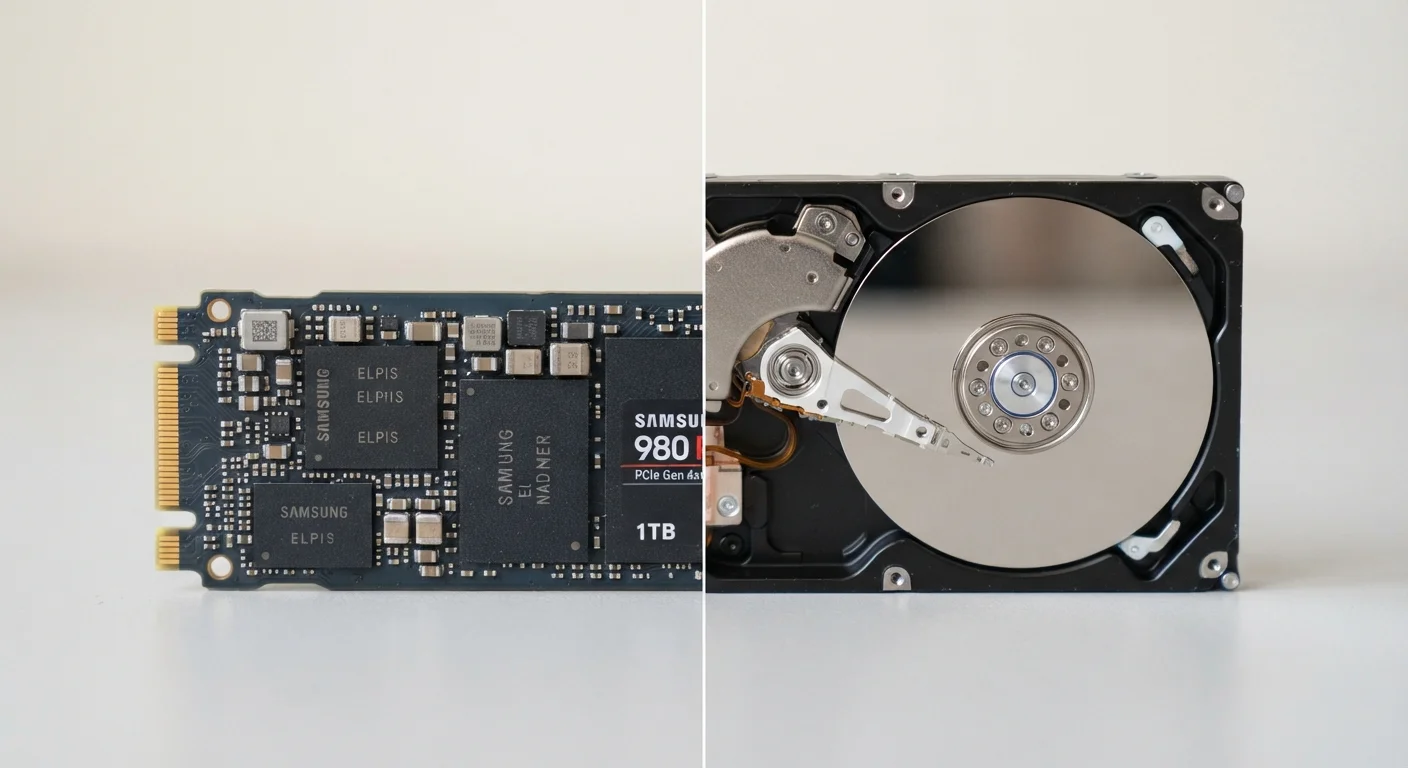
Option A
Solid-State Drive (SSD)
The faster, more durable modern standard.
Best for: Users who prioritize speed, quiet operation, and portability in laptops or desktops.
Option B
Hard-Disk Drive (HDD)
The high-capacity, budget-friendly classic.
Best for: Users who need large amounts of storage for archives, backups, or media libraries at lower cost.
How Each Drive Actually Works
Understanding the core mechanical difference between these two storage technologies explains nearly everything about their performance characteristics.
A hard-disk drive (HDD) stores data on rapidly spinning magnetic platters. A small read/write head moves across the platter surface to find and record data — similar in concept to a record needle. This mechanical movement takes time, which is the root cause of HDDs' slower speeds. It also means HDDs are sensitive to physical shock: a bump while the drive is active can cause the head to scratch the platter, potentially corrupting data.
A solid-state drive (SSD), by contrast, has no moving parts. It stores data on interconnected flash memory chips — the same fundamental technology used in USB thumb drives, just far faster and more sophisticated. Because there's nothing to physically move, data can be accessed almost instantly from any location on the drive. This is why SSDs feel so much more responsive in everyday use.
For a broader look at how storage fits into evaluating consumer electronics overall, see our guide to understanding electronics specs.
Speed, Durability, and Capacity: The Key Trade-offs
When comparing SSDs and HDDs for everyday use, three factors matter most: speed, physical resilience, and how much storage you get for your money.
| Criterion | SSD | HDD |
|---|---|---|
| Typical read speed | 500–7,000+ MB/s | 80–160 MB/s |
| Moving parts | None | Spinning platters and read/write head |
| Shock resistance | High | Lower, especially when active |
| Cost per terabyte | Higher | Lower |
| Noise level | Silent | Audible spinning and clicking |
| Boot/load times | Seconds | Slower, often 30–60+ seconds |
| Typical failure warning | Often sudden | Usually gradual with warning signs |
Speed is where the gap is most felt. Typical HDDs transfer data at roughly 80–160 MB/s. A standard SATA SSD manages 500–550 MB/s, and newer NVMe SSDs (a faster interface found in many modern laptops and desktops) can reach 3,000–7,000 MB/s. For the average user, this translates to boot times measured in seconds rather than minutes, and applications that open almost immediately.
Durability favors SSDs in mobile scenarios. HDDs are rated with a metric called G-force tolerance — the amount of shock they can withstand. Because HDDs have spinning platters and moving heads, they are more vulnerable to drops or vibrations during operation. SSDs tolerate physical shock considerably better, which is why virtually every modern laptop ships with one.
Capacity per dollar still tips toward HDDs. Multi-terabyte HDDs are widely available at prices that make them practical for storing large video libraries, raw photo archives, or full system backups — workloads where raw space matters more than access speed.
~6x
Typical speed advantage of SATA SSD over HDD
Standard SATA SSDs read at roughly 500 MB/s compared to the 80–160 MB/s typical of mechanical hard drives.
$0.02–$0.04
Approximate HDD cost per gigabyte
HDDs generally offer a lower cost per gigabyte than SSDs, making them practical for multi-terabyte bulk storage.
Reliability, Lifespan, and What to Expect Over Time
Both drive types have finite lifespans, but they fail in different ways. HDDs tend to show warning signs before failure — unusual clicking sounds, slowing performance, or increasing read errors — giving users some time to act. SSDs, however, can fail more abruptly, though their overall lifespan is typically measured in terabytes written (TBW), a figure manufacturers publish so users can estimate longevity based on their usage patterns.
Neither technology makes backups optional. Regardless of which drive type you use, external backups or cloud storage remain essential. Hardware can always fail unexpectedly.
Backing Up Remains Essential for Both
No storage technology is immune to failure. SSDs can degrade silently as flash memory cells wear out, while HDDs are susceptible to mechanical failure from normal use over time. Regardless of which drive type you rely on, maintaining at least one separate backup — whether on an external drive or a cloud service — protects against unexpected data loss. The drive type you choose does not change this fundamental principle.
One practical middle ground many desktop users adopt: a smaller SSD holds the operating system and frequently used applications, while a larger HDD stores documents, photos, and media. This hybrid approach captures the speed benefits of an SSD where they matter most while keeping storage costs manageable.
Ultimately, the right choice depends on how you use your computer day to day — not just on specification sheets.
The content on this site is for informational purposes only and is not a substitute for professional advice. Always consult a qualified professional for guidance specific to your situation.