

Start here
Why Specs Feel Overwhelming (and How to Read Them)
Core hardware
The Processor: Your Laptop's Engine
Memory & storage
RAM and Storage: Memory vs. Space
Screen quality
Display Specs: Resolution, Panel Type, and Refresh Rate
Everyday practicalities
Battery Life, Ports, and Build Quality
Put it together
Matching Specs to Your Actual Use Case
Why Specs Feel Overwhelming (and How to Read Them)
Laptop product pages throw a lot at you: i7 vs. Ryzen 7, 512 GB NVMe SSD, IPS 120 Hz, 16 GB DDR5. For a first-time buyer, this reads less like helpful information and more like alphabet soup. The good news: you don't need to understand every acronym. You need to understand what each category of spec controls about your experience, and then decide how much of that matters for what you actually do.
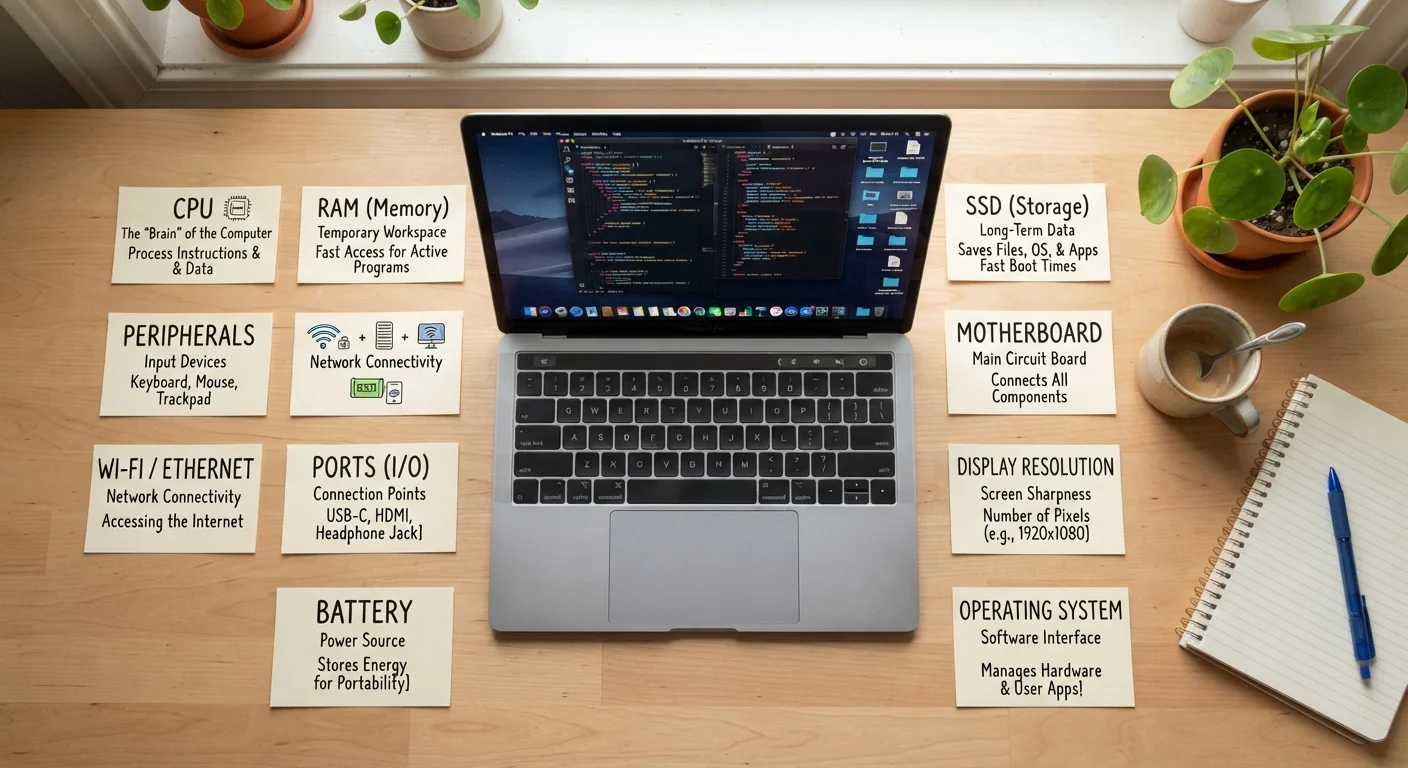
Think of specs in four functional layers: processing power (how fast the laptop thinks), memory and storage (how much it can juggle at once, and how much it can hold), display quality (what you see), and practical factors like battery life and ports. Master those four layers and nearly every laptop spec sheet starts to make sense.
For a broader vocabulary of terms you'll encounter across home technology decisions, the Home Office Tech Glossary is a useful companion reference.
CPU (Processor)
The central processing unit is the main chip that runs every program and instruction on your laptop. Its speed and number of cores determine how quickly it handles tasks.
RAM
Random-access memory is short-term working memory. It temporarily holds data for apps and processes that are actively running, so more RAM means smoother multitasking.
SSD
A solid-state drive is a type of storage that uses flash memory with no moving parts. It is much faster than a traditional hard drive for loading apps and saving files.
Resolution
The number of pixels displayed on the screen, expressed as width × height. Higher resolution means a sharper, more detailed image.
Refresh Rate
How many times per second the screen redraws its image, measured in hertz (Hz). A higher refresh rate produces smoother motion, which is most noticeable in gaming or fast-moving video.
Integrated vs. Dedicated GPU
A GPU handles graphics processing. Integrated graphics are built into the processor and handle everyday tasks. A dedicated GPU is a separate, more powerful chip needed for gaming, 3D work, or demanding video editing.
The Processor: Your Laptop's Engine
The processor (also called the CPU, or central processing unit) is the chip that executes every instruction your laptop runs. A faster, more capable processor means smoother multitasking, faster app launches, and snappier performance under load. It is generally the single most influential component in overall system feel.
Processors are described by their number of cores (independent processing units within the chip) and their clock speed, measured in gigahertz (GHz). More cores help with tasks that run many operations simultaneously—like video rendering or running background processes. Higher clock speed helps with tasks that run sequentially, like loading a complex webpage.
Processor families also have generations—releases that reflect architectural improvements. A newer generation chip often delivers better performance and power efficiency than an older one with a similar model number, even if the numbers look comparable. The relationship between generations and real-world gains is more nuanced than marketing often suggests; how processor generations work explains what to look for critically.
Focus on the tier, not just the number
Processor model numbers can be misleading across generations. Instead of comparing raw numbers, look at whether a chip is positioned as a budget, mainstream, or performance tier within its current generation. Pairing that context with independent benchmark results—rather than marketing claims—gives you a much clearer picture of what to expect day to day.
RAM and Storage: Memory vs. Space
RAM and storage are frequently confused, but they do fundamentally different things. RAM (random-access memory) is your laptop's short-term working memory—it holds the data for everything currently running. When you have fifteen browser tabs open alongside a spreadsheet and a video call, RAM is what keeps all of that active and accessible instantly. When RAM fills up, the system slows down noticeably.
Most users find 8 GB adequate for everyday computing and 16 GB more comfortable for heavier multitasking. RAM type (such as DDR4 or DDR5) affects speed but is rarely the primary decision factor for general users.
Storage is your laptop's long-term space: where your operating system, apps, photos, and documents live when they're not actively in use. The key distinction here is SSD vs. HDD. SSDs are dramatically faster for reading and writing data, which makes the whole system feel quicker—from startup to file saves. HDDs are slower but sometimes appear in configurations where large capacity at lower cost is the priority.
A common storage size for mainstream laptops is 256 GB to 512 GB SSD. If you store large media libraries locally, you may want more; if you rely on cloud storage, less may suffice.
Check Whether RAM Is Upgradeable
Many modern slim laptops solder the RAM directly to the motherboard, which means you cannot upgrade it later. If you buy 8 GB and find it insufficient in a year, you may have no recourse short of replacing the entire laptop. Confirm upgradeability before purchasing if future-proofing is important to you.
Display Specs: Resolution, Panel Type, and Refresh Rate
The display is your primary interface with everything the laptop does, so understanding a few key specs here pays dividends. Three properties matter most: resolution, panel type, and refresh rate.
Resolution describes how many pixels fit on the screen, expressed as width × height (e.g., 1920×1080, called Full HD or 1080p). Higher resolution means sharper text and images—important on larger screens where low resolution becomes visibly grainy. A 13-inch 1080p display looks sharp; a 17-inch 1080p display may look softer by comparison.
Panel type affects color accuracy and viewing angles. IPS panels offer wide viewing angles and accurate color. OLED panels deliver deeper blacks and vibrant contrast. TN panels are cheaper but have narrower viewing angles and less accurate color. For most users, an IPS display offers a good balance of quality and value.
Refresh rate, measured in hertz (Hz), describes how many times per second the display updates the image. Standard is 60 Hz. For gaming or fast-motion video work, 120 Hz or higher produces visibly smoother motion. For document editing and general web use, 60 Hz is perfectly fine—and a higher refresh rate does draw more battery. A deeper look at refresh rate alongside related display specs is covered in Refresh Rate, Response Time, and Input Lag.
Battery Life, Ports, and Build Quality
Once you've evaluated the core internals and display, three practical factors often get underweighted by first-time buyers: how long the battery lasts, what you can plug in, and how durable the machine feels.
Battery life is listed in watt-hours (Wh) or as an estimated runtime in hours. Manufacturer estimates are optimistic by design—they typically reflect light workloads at reduced brightness. Real-world battery life under typical conditions is often noticeably shorter. Higher-performance processors and brighter, higher-refresh displays consume more power, so those tradeoffs affect runtime directly.
Ports determine what you can connect without an adapter. Look for USB-A (standard full-size USB), USB-C (the smaller, newer standard that also handles charging and video on many laptops), an HDMI output if you plan to connect an external monitor, and a headphone jack if you use wired audio. Thin and light laptops increasingly drop ports to reduce thickness, so check the port selection against what you actually use.
Build quality matters for longevity. Chassis materials—aluminum, magnesium alloy, polycarbonate—affect both durability and weight. A heavier laptop might feel more solid but becomes a burden in a bag over time. Consider how often you'll carry the machine and whether it will live primarily on a desk.
Matching Specs to Your Actual Use Case
The most common mistake first-time laptop buyers make is chasing the highest numbers rather than asking which numbers actually affect their daily tasks. A photo editor needs strong color accuracy and processing power. A student primarily writing papers and joining video calls needs reliable battery life and enough RAM to keep a browser and documents open simultaneously. A casual home user rarely needs a dedicated graphics card or a 165 Hz display.
Before evaluating any spec sheet, write down the three or four things you'll do on the laptop most often. Then map each activity to the specs that directly affect it. That exercise turns an overwhelming list of numbers into a short checklist of what actually matters for you.
For a broader framework covering how to read and compare consumer electronics specs across categories—not just laptops—The Full Picture on Consumer Electronics provides a comprehensive, jargon-free resource from initial evaluation through long-term ownership.
Home Office Tech Glossary
A plain-language reference covering tech terms that come up frequently in home computing decisions, including bandwidth, USB-C, and display terminology.
How Processor Generations Work
Explains what CPU generation labels actually mean and how to interpret performance claims with a critical eye before drawing conclusions from spec sheets.
Frequently Asked Questions
For general tasks like web browsing, email, and document editing, 8 GB of RAM is typically sufficient. If you work with multiple large applications at once, video editing software, or run virtual machines, 16 GB provides more comfortable headroom. More RAM than you need rarely translates to a noticeable speed boost.
An SSD (solid-state drive) uses flash memory with no moving parts, making it significantly faster and more durable than an HDD (hard disk drive), which uses spinning magnetic platters. SSDs load apps and files much more quickly. Most modern laptops ship with SSDs; HDDs still appear occasionally in budget or high-capacity configurations.
Not necessarily. Processor model numbers indicate a product tier within a family, but generation, architecture, and thermal design also heavily influence real-world performance. A newer lower-numbered chip sometimes outperforms an older higher-numbered one. It's worth reading how processor generations compare before drawing conclusions.
For everyday tasks—web browsing, office work, streaming video—a 60 Hz display is perfectly adequate. If you plan to game or do fast-paced video work, a 120 Hz or higher refresh rate produces smoother motion. Higher refresh rates typically consume more battery, so consider your priorities.
For most everyday users, the integrated graphics built into the processor handles web browsing, video playback, and light photo editing without issue. A dedicated GPU becomes valuable for gaming, 3D rendering, or professional video work. It also adds cost and reduces battery life, so only prioritize it if your tasks genuinely demand it.
Manufacturer battery life figures are typically measured under ideal, low-intensity conditions. Real-world usage—with multiple browser tabs, higher brightness, and active applications—can yield 20–40% less runtime. Looking for independent third-party testing, when available, tends to give a more accurate picture of typical battery endurance.
The content on this site is for informational purposes only and is not a substitute for professional advice. Always consult a qualified professional for guidance specific to your situation.