

Why a Tech Glossary Matters for Remote Workers
When you're shopping for a monitor, troubleshooting a slow video call, or trying to connect two computers to one set of peripherals, you'll run into unfamiliar terms fast. Understanding what those terms actually mean — not just their definitions, but what they change in daily use — helps you spend smarter and set up more effectively.
This glossary covers the vocabulary that comes up most often in home office decisions: connectivity, display quality, ergonomic furniture specs, and peripheral management. For a broader look at putting a workspace together, see The Anatomy of a Productive Home Office.
Bandwidth
The maximum amount of data your internet connection can transfer per second, measured in megabits (Mbps) or gigabits (Gbps). More bandwidth allows more simultaneous users and higher-quality video calls without slowdowns.
Latency
The time it takes for a data packet to travel from your device to a server and back, measured in milliseconds (ms). Lower latency means less delay — critical for video calls and real-time collaboration tools.
USB-C Hub
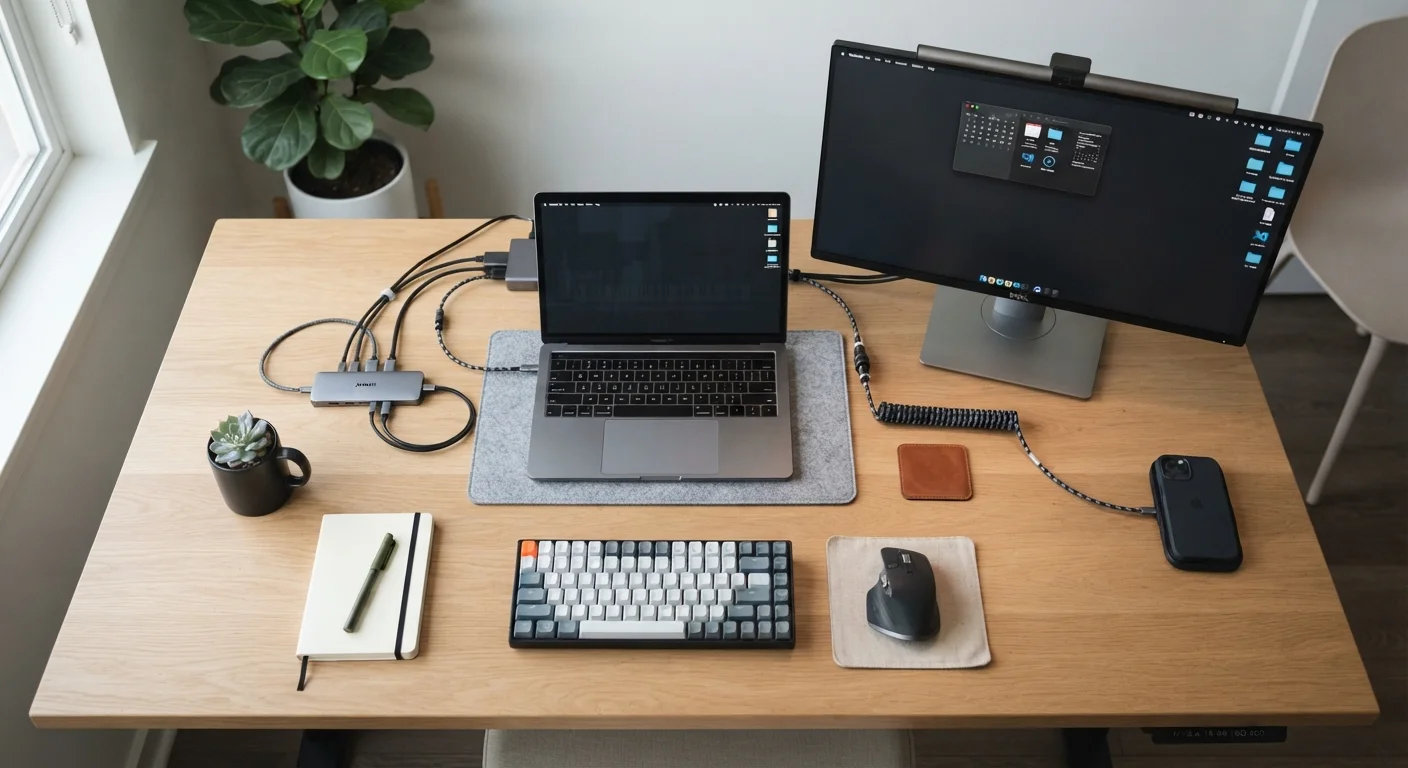
A small adapter that expands a single USB-C port into multiple connection types — HDMI, USB-A, SD card, Ethernet — simultaneously. Useful when a laptop has limited ports.
KVM Switch
Short for Keyboard, Video, Mouse switch. A hardware device that lets you control two or more computers using a single keyboard, monitor, and mouse, switching between them with a button or shortcut.
Refresh Rate
How many times per second a monitor redraws the image on screen, expressed in hertz (Hz). Standard office monitors run at 60 Hz, which is adequate for most productivity tasks.
PoE (Power over Ethernet)
A standard that lets an Ethernet cable deliver both data and electrical power to a device — commonly used for network cameras, VoIP phones, and access points — eliminating a separate power adapter.
Docking Station
A hub that connects a laptop to multiple peripherals — monitors, keyboard, mouse, Ethernet, and audio — through a single cable, usually USB-C or Thunderbolt. It turns a portable laptop into a full desktop setup.
Thunderbolt
A high-speed port and cable standard (developed by Intel) that supports fast data transfer, video output, and power delivery simultaneously. Thunderbolt 4 ports look identical to USB-C but offer higher performance.
Ergonomic Range
The full span of height, tilt, and swivel adjustments a desk, chair, or monitor arm provides. A wider ergonomic range accommodates more body types and seated positions.
Mesh Wi-Fi
A multi-router system where several nodes work together to blanket a home in one unified Wi-Fi network. It eliminates dead zones more effectively than a single router in a large or multi-story space.
Display Resolution
The number of pixels on a screen, expressed as width by height (e.g., 1920×1080 for 1080p, or Full HD). Higher resolution means sharper text and more usable screen space for multitasking.
Blue Light Filter
A hardware or software setting that reduces the amount of short-wavelength (blue) light emitted by a screen. Many monitors and operating systems include this feature to reduce eye strain during extended use.
Connectivity and Network Terms
A reliable connection is the foundation of remote work. These terms define what your router, ISP, and devices are actually doing.
| Minimum video call bandwidth | 1.5 Mbps upload and download for HD (720p) calls (Zoom minimum requirements, general guidance) |
| Recommended home office download speed | 25 Mbps or higher per heavy user (FCC broadband definition baseline) |
| Wi-Fi 6 vs. Wi-Fi 5 theoretical max speed | Wi-Fi 6: up to 9.6 Gbps; Wi-Fi 5: up to 3.5 Gbps (IEEE 802.11ax and 802.11ac standards) |
| Typical Ethernet cable max length (Cat 5e/Cat 6) | 100 meters (approx. 328 feet) before signal degradation (TIA/EIA cabling standards) |
| USB-C Power Delivery max wattage | Up to 240W (USB PD 3.1 specification) (USB Implementers Forum) |
| Common office monitor refresh rate | 60 Hz (Industry standard for productivity displays) |
For a deeper look at how wired and wireless devices compare on latency and reliability, Wired vs. Wireless Peripherals for Remote Work breaks down the practical trade-offs clearly.
Display and Ergonomic Terms
Monitor specs and furniture adjustability both shape how you feel after a full workday. Here's what the numbers on the label actually mean in practice.
Refresh rate describes how many times per second a screen redraws its image, measured in hertz (Hz). At 60 Hz — still the most common for office monitors — the image updates 60 times per second, which is smooth enough for documents and video calls. Higher rates (120 Hz, 144 Hz) are primarily beneficial for motion-heavy content like video editing or gaming, so they're less critical for typical knowledge-worker tasks. If you want to understand how this interacts with other display specs, Laptop Specs Demystified is a useful companion read.
Ergonomic range on a desk or monitor arm refers to the range of height, tilt, and swivel adjustments available. A monitor arm that adjusts from 15 to 22 inches off the desk covers more seated postures than a fixed-height stand. If you've been experiencing discomfort, Why Your Back Hurts After Working from Home explains the setup errors most often responsible.
Peripheral and Port Terms
Ports, hubs, and switches determine how you connect everything — and whether your setup stays tidy or turns into a cable tangle.
70%+
Remote workers using a laptop as primary device
Survey data from multiple workforce studies consistently shows most remote employees rely on laptops rather than desktop towers.
1 cable
Connections needed with a Thunderbolt docking station
A single Thunderbolt or USB-C dock can replace up to a dozen individual cables between a laptop and its peripherals.
100ms+
Latency threshold where call quality noticeably degrades
Network engineers generally flag round-trip latency above 100ms as the point where voice and video calls begin to feel sluggish or choppy.
If you're building a workspace from the ground up, Home Office Setup: A Complete Starting Point walks through all the foundational decisions in one place. For a broader vocabulary reference beyond the office, the Smart Home Glossary covers overlapping networking and device terms.
The content on this site is for informational purposes only and is not a substitute for professional advice. Always consult a qualified professional for guidance specific to your situation.