

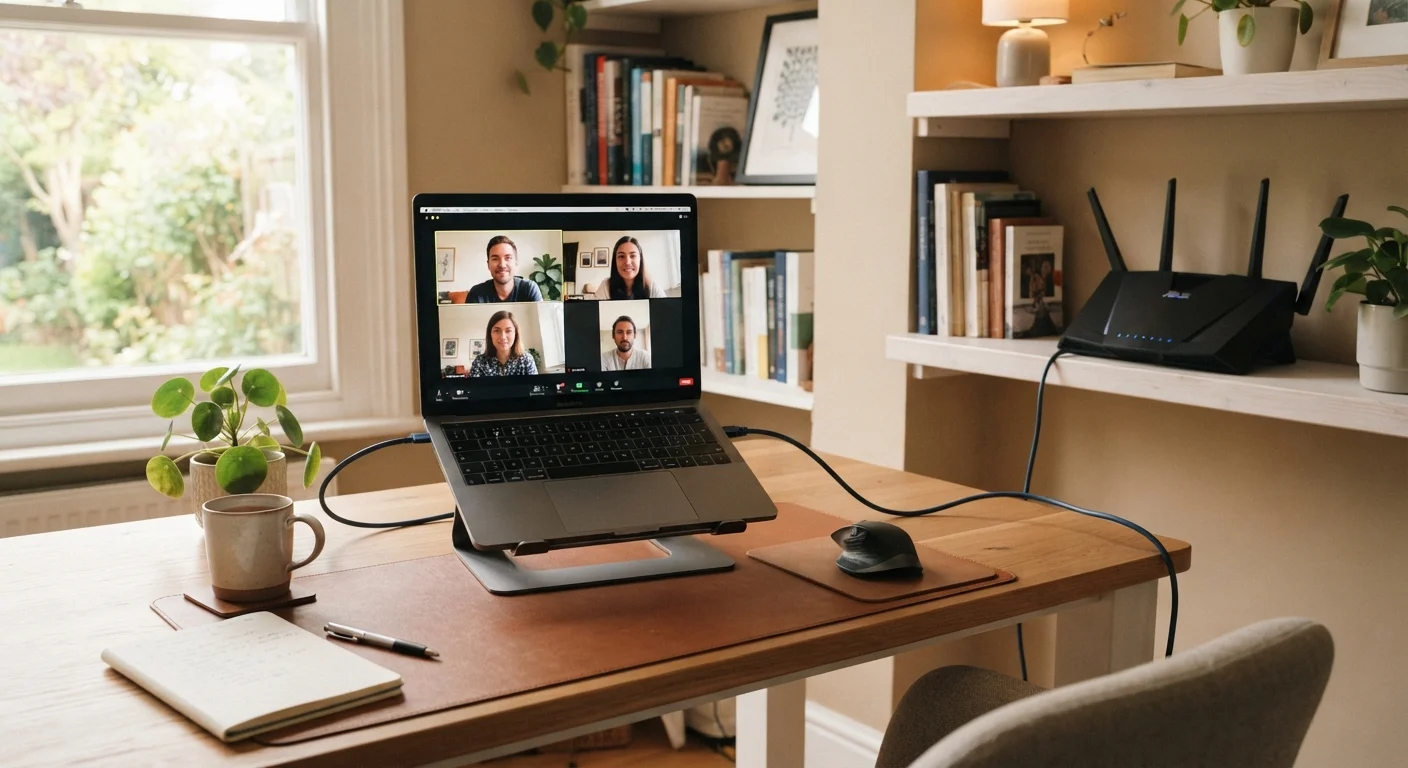
Why Home Networks Struggle With Video Calls
Video calls are unusually demanding compared to most home internet tasks. Streaming a movie is largely a one-way download; a video call requires constant, simultaneous upload and download — and any interruption in either direction shows up immediately as pixelation, freezing, or dropped audio. Most home networks were built around general browsing and streaming, not the real-time, bidirectional demands of modern work. Understanding where the friction comes from is the first step to eliminating it.
The three most common culprits are: router placement (signal has to travel through too many obstacles), band congestion (too many devices sharing the same wireless frequency), and upload speed limitations (residential internet plans often offer asymmetric speeds, with download far outpacing upload). A fourth factor — the sheer number of devices now connected to a typical home network — has grown substantially as smart home products have proliferated.
For a broader look at how connectivity fits into your workspace as a whole, see The Anatomy of a Productive Home Office, which covers how networking, lighting, acoustics, and furniture all interact.
What you will need
Step-by-Step Network Improvements
The steps below move from diagnosis to configuration to hardware — follow them in order, since earlier steps often resolve the problem before you need to spend anything on new equipment. You'll need access to your router's admin panel and a few minutes at each stage.
Ethernet Cable (Cat 5e or higher)
Provides a direct, wired connection from your computer to the router for maximum stability.
Wi-Fi Analyzer App
Scans nearby wireless networks to identify channel congestion and signal strength around your workspace.
Router Admin Panel
Used to configure QoS, change Wi-Fi channels, and adjust band settings.
Network Switch
Expands the number of wired Ethernet ports available if your router has limited ports.
Mesh Wi-Fi Node (Satellite Unit)
Extends reliable wireless coverage to areas of your home where the main router signal is weak.
Run a baseline speed test
Before changing anything, measure what you're actually working with. Visit a free speed-testing site — speedtest.net is widely used — and run the test from the device you use for calls. Note your download speed, upload speed, and ping (latency). Video calls typically require at least 3–5 Mbps upload and download per active stream; upload speed is often the limiting factor in a home setting. If your measured speeds fall well below your plan's advertised speeds, the problem may start at the service level, not the router.
Reposition your router for line-of-sight coverage
Wi-Fi signals weaken every time they pass through a wall, floor, or large appliance. Move your router to a central, elevated location — a shelf or bookcase near the middle of your home works well. Avoid placing it inside cabinets, behind the television, or near microwaves and cordless phones, all of which generate interference on similar radio frequencies. If your workspace is in a corner room or basement, a mesh Wi-Fi node placed between the router and your desk can bridge the gap more effectively than relying on a single router.
Switch to the 5 GHz band for your work device
Most modern routers broadcast two separate bands: 2.4 GHz and 5 GHz. The 2.4 GHz band carries signal farther but is often crowded with neighboring networks and smart home devices. The 5 GHz band offers faster throughput and less interference — ideal for video calls — but has a shorter effective range. In your device's Wi-Fi settings, look for a network name that ends in _5G or similar. Connect your call device to that band. Leave lower-priority devices (smart bulbs, thermostats) on 2.4 GHz.
Enable QoS to prioritize call traffic
Quality of Service (QoS) is a router feature that lets you assign priority to specific types of traffic. When enabled and configured, your router will favor video call data over background tasks like software updates or file backups. Log into your router's admin panel (the address is usually printed on the router label — commonly 192.168.1.1 or 192.168.0.1). Look for a QoS or Traffic Priority section. Set video conferencing applications or your work computer's IP address as high priority. The exact menu layout varies by router manufacturer.
Connect via Ethernet if possible
No wireless improvement fully matches a direct Ethernet connection for call reliability. A wired connection eliminates interference, reduces latency, and provides consistent throughput regardless of how many other devices are on the network. Run an Ethernet cable from your router (or a network switch) to your desk. Many laptops require a USB-C to Ethernet adapter if they lack a built-in port — these are widely available and straightforward to use. If running a cable through your space isn't practical, a powerline adapter kit uses your home's electrical wiring to carry network data between rooms.
Reduce network load during important calls
Even a well-configured network gets strained when many devices compete for bandwidth simultaneously. Before a critical meeting, pause cloud backup services (Dropbox, OneDrive, iCloud), ask others in the household to avoid streaming video, and close browser tabs with auto-refreshing content. On your router's admin panel, you can view a list of connected devices and temporarily disconnect any that aren't essential. Fewer active devices means more consistent bandwidth for your call.
Test Your Upload Speed Specifically
Most people check download speed and assume their connection is fine, but video calls depend heavily on upload speed. Run a speed test and look at the upload number specifically. If it's below 5 Mbps and you share the network with others during work hours, that's likely your bottleneck — not the router placement or Wi-Fi band.
When Simple Fixes Aren't Enough
If you've worked through all the steps above and calls are still unreliable, the issue may lie with your internet service plan itself. Contact your provider and confirm whether your current plan's upload speed matches what's advertised — technicians can run line tests that reveal problems between your home and the provider's equipment. Upgrading to a plan with higher upload speeds (or switching to a fiber connection if available in your area) tends to have a more dramatic effect on call quality than any in-home configuration change.
For households with multiple remote workers or students on simultaneous calls, a mesh Wi-Fi system — which places multiple access points around the home rather than relying on a single router — can distribute load more evenly. This is particularly relevant in larger homes or spaces with thick concrete or brick walls. Learn how network setup fits alongside desk, chair, and monitor decisions in the Home Office Setup starting guide for remote workers.
Powerline Adapters Vary by Home Wiring
Powerline adapters — which send network data through your home's electrical wiring — work well in many homes but can perform poorly in older buildings or where circuits are split across different electrical panels. Test with a return policy in place if you're unsure about your home's wiring layout.
The content on this site is for informational purposes only and is not a substitute for professional advice. Always consult a qualified professional for guidance specific to your situation.