

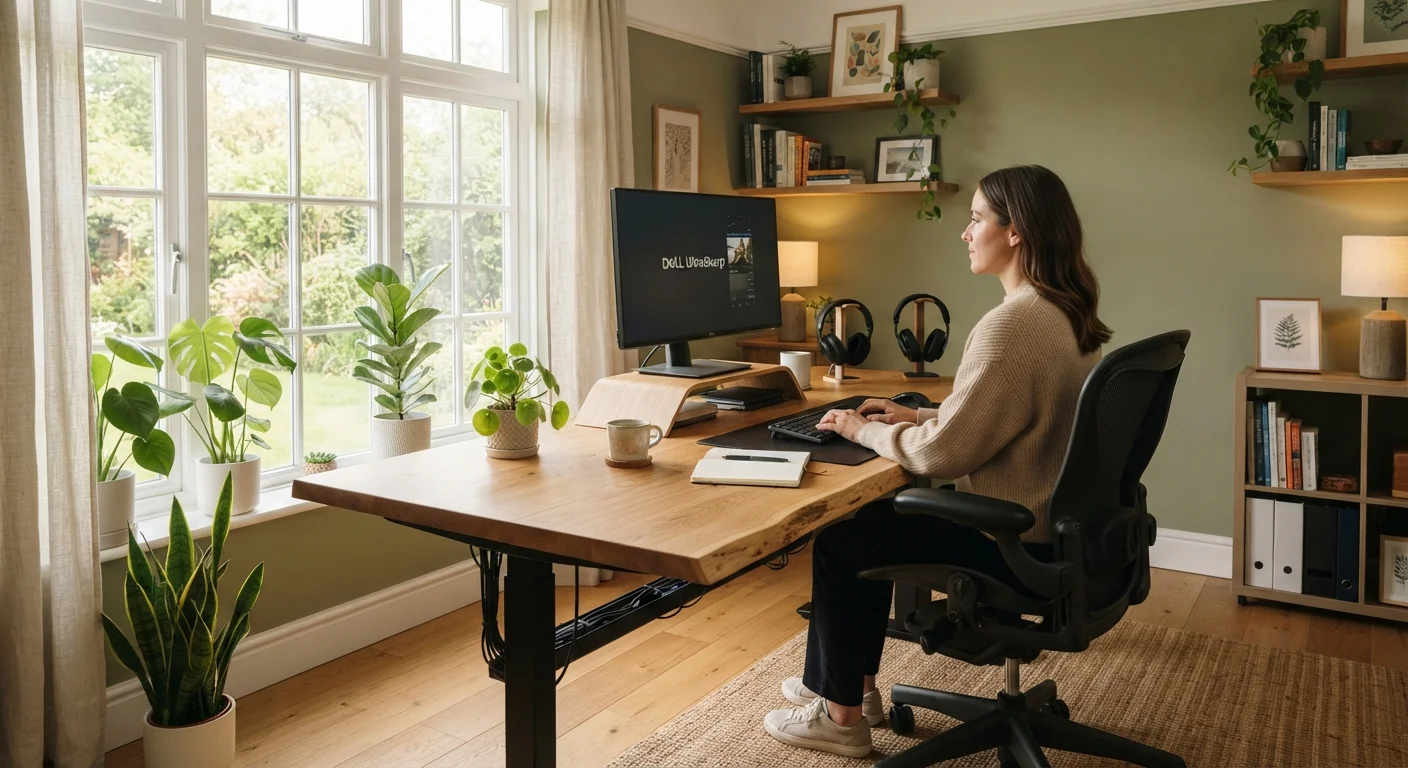
Why Setup Matters More Than You Might Expect
Working from home removes commute stress and office politics, but it introduces a different challenge: your environment is entirely your responsibility. Unlike a corporate office — where facilities teams manage ergonomics, lighting, and infrastructure — a home office rises or falls based on the decisions you make when setting it up.
The good news is that the anatomy of a productive workspace is well understood. A handful of core elements, addressed thoughtfully, account for the vast majority of what separates a frustrating home setup from one that genuinely supports focused work. For a broad starting framework, see our complete starting point for remote workers.
77%
Remote workers reporting productivity at home
According to a survey by Owl Labs, the majority of remote workers report being as productive or more productive at home — but setup quality is a recurring variable.
~$500
Average home office setup spend by remote workers
Surveys from global staffing firms suggest remote workers spend several hundred dollars on average to equip a home workspace, with ergonomic furniture accounting for the largest share.
3x
Productivity loss from persistent noise distractions
Research from the University of California, Irvine has found that recurring interruptions — including noise — can triple the time needed to return to a focused work state.
Lighting: The Element Most People Get Wrong
Lighting affects your alertness, your eye health, and how you appear on video calls. The ideal setup combines indirect natural light with controllable artificial sources. Place your desk perpendicular to windows — not facing them (which causes glare) and not with your back to them (which creates a backlit silhouette on calls).
For artificial lighting, aim for consistent, diffuse illumination rather than a single overhead bulb casting harsh shadows. A desk lamp with adjustable color temperature — ranging from warm tones for relaxed tasks to cooler, daylight-spectrum tones for focused work — gives you meaningful control throughout the day.
Use a Bias Light Behind Your Monitor
Placing a low-brightness light source behind your monitor (pointing at the wall, not at you) reduces the contrast between a bright screen and a dark background. This technique, called bias lighting, is one of the simplest ways to reduce eye strain during long screen sessions. LED strips designed for this purpose are widely available and easy to install.
Ergonomics: Comfort That Compounds Over Time
The physical costs of a poorly designed workspace don't show up immediately — they accumulate. An unsupportive chair, a monitor at the wrong height, or a keyboard positioned awkwardly can produce neck strain, wrist discomfort, and lower back pain that erode your focus and wellbeing over weeks and months.
Key ergonomic principles to apply: your monitor should sit at roughly arm's length with the top of the screen at or just below eye level. Your chair should support your lower back and allow your feet to rest flat. Your keyboard and mouse should let your elbows stay close to a 90-degree angle without raising your shoulders. If back discomfort is already a factor, our article on why your back hurts after working from home breaks down the common culprits. Incorporating regular movement breaks also matters — movement habits for sedentary work days offers practical approaches.
Connectivity: The Infrastructure Behind Everything
Unstable internet is one of the most disruptive forces in remote work. A dropped video call, a lagging screen share, or a file that won't upload can derail an entire meeting. Your home network deserves the same attention you'd give to any other work tool.
Where possible, connect your primary work computer directly to your router via Ethernet cable rather than relying on Wi-Fi — this alone dramatically improves connection stability. If Ethernet isn't practical, ensure your router is in the same room or nearby, and minimize the number of devices competing for bandwidth during work hours. For a detailed walkthrough, see our guide on setting up a home network for video calls.
“The home office is not just a place to work — it's a designed system. When the components are aligned, the environment becomes invisible and the work takes over.”
— Ethan Bernstein, Professor of Leadership and Organizational Behavior, Harvard Business School
Acoustics and Organization: The Finishing Layer
Noise — both the kind that reaches you and the kind your microphone picks up — is an underappreciated productivity factor. Hard surfaces reflect sound and amplify ambient noise; soft furnishings (rugs, curtains, upholstered chairs) absorb it. A closed door is the single most effective acoustic intervention available in most homes.
Physical organization matters too. Cable clutter creates visual noise that subtly raises cognitive load. Routing cables out of sight and keeping your desk surface clear of non-work items helps maintain the mental clarity that deep work requires. Before committing to any layout, running through a home office planning checklist can help you anticipate issues — outlet placement, noise sources, and airflow — before furniture is in place.
If you encounter unfamiliar terminology while building out your setup, the home office tech glossary provides plain-language definitions for common terms.
Common Home Office Beliefs Worth Questioning
Not every popular piece of home office advice holds up under scrutiny. For example, the assumption that a second monitor always improves productivity, or that complete silence is best for focus, are worth examining based on your own working style. Our article on home office productivity myths reviews these ideas against what research actually suggests.
Frequently Asked Questions
Lighting, seating ergonomics, reliable internet connectivity, and acoustic control are the four foundational pillars. Each one affects your ability to work comfortably and without interruption. Most setup problems trace back to one of these areas being overlooked.
Yes — natural light supports alertness and reduces eye strain compared with harsh artificial lighting. Positioning your desk to receive indirect daylight, rather than direct glare on your screen, is generally recommended by ergonomics professionals. Where natural light is limited, a quality daylight-spectrum lamp can help.
Most video calls and cloud-based work require at least 25 Mbps download and 10 Mbps upload speeds per user. However, raw speed matters less if your connection is unstable or shared across many devices. Router placement and a wired Ethernet connection often improve call quality more than upgrading your plan.
Full soundproofing is rarely needed. Basic acoustic improvements — soft furnishings, a door, a rug — absorb enough ambient noise to meaningfully reduce distractions. For video calls, a quality headset with a built-in microphone often solves background noise issues without any room modifications.
Lighting is consistently underestimated. Most people focus on furniture and technology while leaving lighting as an afterthought. Poor lighting — too dim, too harsh, or positioned to create screen glare — is a common source of end-of-day headaches and fatigue.
Absolutely. The principles of lighting, ergonomics, connectivity, and acoustics apply to any space, regardless of size. See our <a href="/home-tech/home-office-setup/small-space-home-office-solutions-that-dont-compromise-function">small-space home office solutions</a> for approaches tailored to limited square footage.
The content on this site is for informational purposes only and is not a substitute for professional advice. Always consult a qualified professional for guidance specific to your situation.