

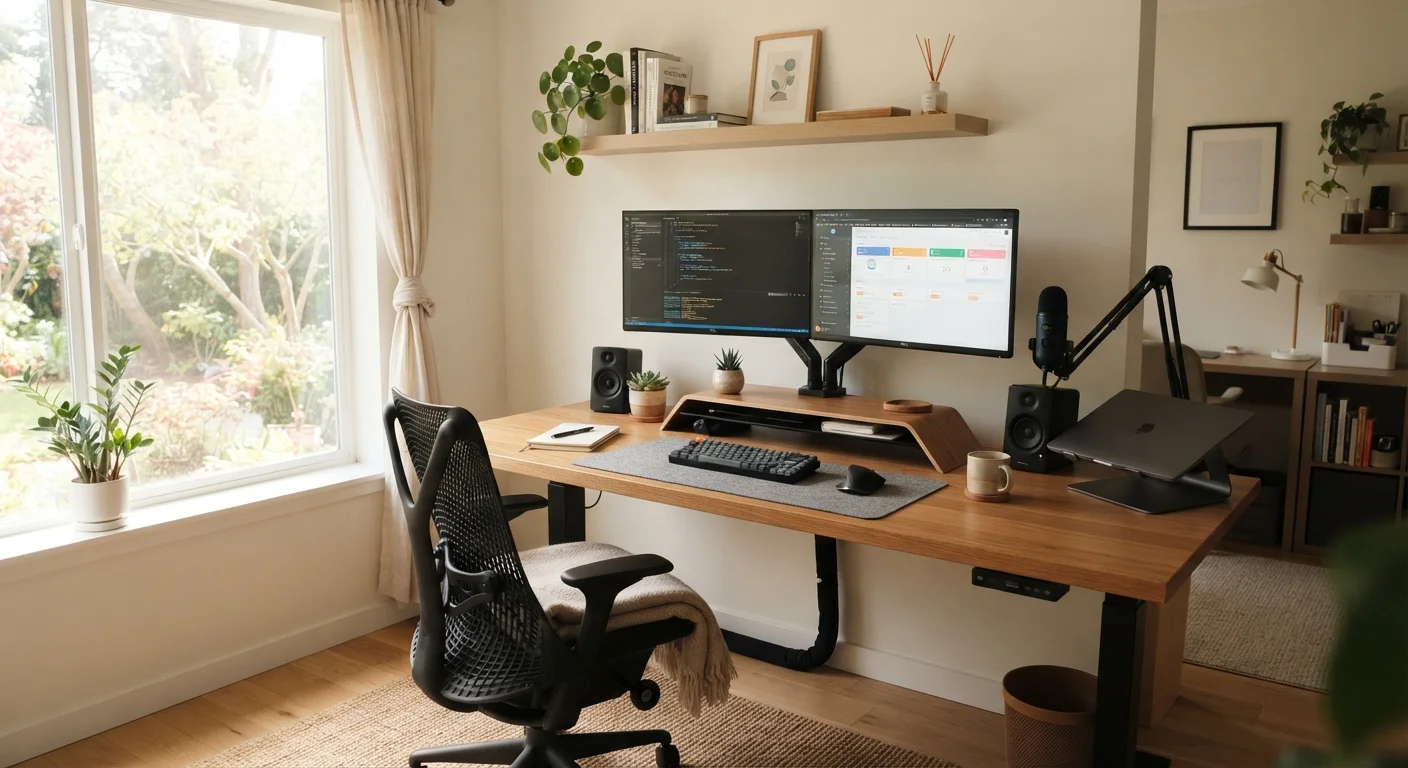
Planning Your Space Before You Buy Anything
The most common home office mistake is buying gear before deciding where it will actually live. A few minutes of planning saves hours of rearranging — and potentially money spent on items that don't fit the space or your workflow.
Start by identifying your available footprint: measure the floor area, note where power outlets are located, and consider the natural light direction throughout the day. Eastern light is energizing in the morning; western light creates afternoon glare on screens. Before committing to a layout, use our home office planning checklist to walk through power, connectivity, and acoustics in a structured way.
Also consider noise. A space near a street or a shared wall might need acoustic intervention — rugs, bookshelves, and curtains all absorb sound effectively without major renovations. If you're working in a limited area, small-space home office solutions can help you build a functional setup without a dedicated room.
Sketch Your Layout Before Moving Furniture
Use graph paper or a free room-planning app to draw your space to scale before moving a single piece of furniture. Mark outlet locations, window positions, and door swings. This two-dimensional preview often reveals conflicts — like a chair that blocks a doorway — before they become physical problems.
Furniture That Supports Long Hours
The chair is the single most consequential piece of furniture in any home office. Lumbar support — the inward curve that supports your lower back — should be adjustable, not just present. Seat depth, armrest height, and seat pan tilt all affect posture over an eight-hour day in ways a basic office chair simply cannot address.
Desk height is equally important. For most people, elbows should rest at roughly 90 degrees when typing, with wrists floating flat. A desk that is too high causes shoulder tension; too low creates forward-head posture. Height-adjustable (sit-stand) desks allow you to alternate positions throughout the day, which research increasingly links to reduced musculoskeletal discomfort — though any desk works if paired with deliberate movement habits.
Before adjusting your chair, set your desk height first. Most people do it backward — fitting the chair to the desk — which compounds poor ergonomics rather than correcting them.
Desk height is the fixed anchor point in your workstation geometry; chair adjustments should align your body to the desk, not the other way around.
Use the '20-20-20 rule' to manage eye strain: every 20 minutes, look at something 20 feet away for at least 20 seconds to allow eye muscles to relax.
Extended near-focus work causes eye muscle fatigue, which contributes to headaches and blurred vision — common complaints among full-time remote workers.
If you're newer to home office setup and want a foundational rundown of every major furniture and tech decision, our complete starting point for remote workers covers the essentials in plain terms.
Core Tech: What Actually Matters
A common assumption is that more monitors always equals more productivity. The evidence is more nuanced — a second display helps primarily for tasks involving reference material alongside a primary working document. For single-application work like writing or coding, one large, well-positioned monitor often serves better than two smaller ones.
Monitor position matters as much as size: the top of the screen should sit at or just below eye level, roughly an arm's length away. This reduces eye strain and neck strain simultaneously. For a more grounded look at which home office assumptions hold up under scrutiny, see myths about home office productivity.
A quality keyboard and pointing device are often overlooked. Mechanical keyboards offer tactile feedback that reduces typing fatigue for heavy typists. Ergonomic mice — including vertical or trackball designs — reduce forearm rotation, which benefits anyone prone to wrist discomfort. These are modest investments relative to their daily-use impact.
~65%
Remote workers reporting musculoskeletal discomfort
Multiple occupational health surveys have found that a majority of full-time remote workers report neck, back, or wrist discomfort linked to home workstation setup.
3–5 ft
Recommended monitor viewing distance
Ergonomics guidelines generally recommend placing monitors roughly an arm's length away — approximately 20 to 40 inches — to reduce eye strain during extended screen use.
Connectivity and Network Reliability
Your internet connection is the infrastructure everything else depends on. Wi-Fi is convenient, but a direct Ethernet connection from your router to your computer eliminates the packet loss and latency spikes that cause video call degradation. If running a cable isn't practical, a powerline adapter — a device that sends network signals through your home's existing electrical wiring — is a viable middle option.
Router placement matters for those relying on Wi-Fi. Routers broadcast signal in all directions, so central placement in the home and away from large metal objects or microwaves reduces interference. Mesh Wi-Fi systems extend coverage across larger homes by using multiple coordinated nodes rather than a single device.
ISP Speed vs. Real-World Performance
Advertised internet speeds reflect maximum capacity under ideal conditions, not what you'll consistently experience. A speed test run at your desk — not at the router — gives a more accurate picture of actual working conditions. Significant drops from your plan's advertised speed may indicate a connectivity issue worth investigating with your provider.
For households integrating smart home devices alongside work equipment, the Smart Home Basics hub covers how devices interact on the same network — relevant if you're troubleshooting bandwidth or interference issues.
Shared Networks Can Affect Work Performance
If multiple household members are streaming, gaming, or on video calls simultaneously, bandwidth contention can degrade work calls and uploads. Consider Quality of Service (QoS) settings on your router — a feature that prioritizes specific types of traffic — or discuss scheduling bandwidth-heavy activities during non-work hours.
Lighting, Audio, and Video for Remote Meetings
Lighting is the fastest way to improve how you appear on video calls. Front-facing light — a lamp or window positioned in front of you, not behind — eliminates the silhouette effect that makes faces dark and expressions unreadable. A simple ring light or a desk lamp directed toward your face costs little and makes an immediate difference.
Audio quality affects meeting comprehension more than most remote workers realize. Built-in laptop microphones pick up keyboard noise, room echo, and ambient sound. A dedicated USB microphone or a headset with a close-mounted microphone dramatically narrows the audio capture field, focusing on your voice and reducing background noise.
Webcam resolution matters less than lighting. A modest webcam in good light outperforms a high-resolution camera in poor light. Position your camera at eye level — stacking it on books works fine — to create a natural sightline rather than an upward-angle view.
“The quality of your audio matters more than the quality of your video in remote meetings. People will tolerate a pixelated image, but they'll disconnect from a call with bad sound.”
— A widely cited principle in remote collaboration research and professional AV guidance., General consensus across remote work and audio-visual communication literature
Movement, Breaks, and Long-Term Wellbeing
Static sitting for extended periods is associated with physical discomfort and reduced cognitive performance over a workday. The goal isn't to stand all day either — alternating between sitting and standing, and taking brief movement breaks every 60 to 90 minutes, is a more sustainable approach than any single posture.
Simple interventions matter: standing while on phone calls, walking to a different room for a break, or keeping a water bottle that requires refilling creates natural interruption patterns. For structured approaches to building movement into your routine, the Fitness & Movement hub offers practical, evidence-informed guidance.
Persistent Pain Warrants Professional Attention
If you experience ongoing neck, back, or wrist pain during or after remote work, ergonomic adjustments alone may not be sufficient. Consult a qualified healthcare professional — such as a physical therapist or occupational therapist — who can assess your individual posture and workspace setup. Do not treat persistent pain as an expected cost of desk work.
Ergonomics, lighting, and connectivity are adjustable over time — the best home office evolves as your work habits and needs become clearer. Start with what you have, identify your biggest friction points, and address those specifically rather than overhauling everything at once.
This article provides general information for educational purposes. For personalized ergonomic, health, or medical guidance, consult a qualified professional.
Home Office Planning Checklist
A structured checklist covering space, power, lighting, noise, and connectivity — walk through it before rearranging your room or buying any equipment.
Small-Space Home Office Solutions
Practical approaches for building a functional workspace in a studio, shared room, or spare corner without a dedicated home office.
Smart Home Basics Hub
Covers how smart home devices work together on a shared network — useful context for anyone managing multiple connected devices alongside work equipment.
Fitness & Movement Hub
Evidence-informed guidance on building sustainable movement habits — directly relevant to countering the physical effects of full-time desk work.
The content on this site is for informational purposes only and is not a substitute for professional advice. Always consult a qualified professional for guidance specific to your situation.