

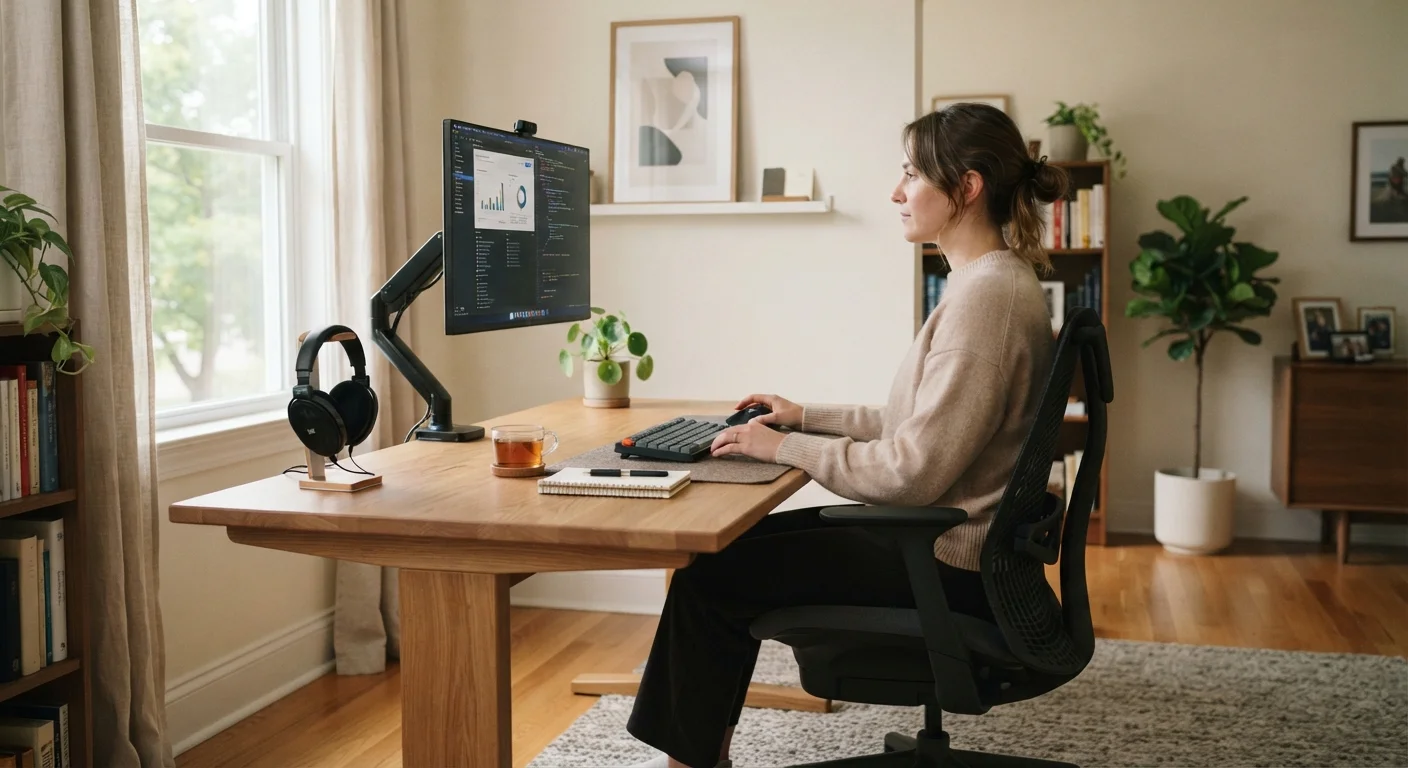
Why Workspace Positioning Is More Than Comfort
Most people treat desk setup as a one-time task: put the monitor somewhere it fits, pull up a chair, and get to work. But the positions your body holds for six, eight, or ten hours a day have cumulative effects on muscles, joints, and the soft tissue surrounding your spine and shoulders.
Ergonomics isn't about luxury furniture or expensive gear — it's about alignment. A $200 chair placed at the right height outperforms a $1,000 chair used incorrectly. Understanding the why behind ergonomic guidelines helps you apply them to whatever workspace you have, including constrained setups. For a broader look at what makes a home workspace effective, see The Anatomy of a Productive Home Office.
~65%
Remote workers reporting musculoskeletal discomfort
Multiple occupational health surveys have found that a majority of remote workers report neck, back, or shoulder discomfort linked to home office setups.
20–30 in
Recommended monitor distance from eyes
Occupational Safety and Health Administration (OSHA) computer workstation guidelines suggest this range as the standard for reducing eye strain.
90°
Elbow angle for neutral typing posture
Ergonomic guidelines commonly cite a right-angle elbow position as the target for minimizing forearm and wrist strain during keyboard use.
Getting Desk Height Right
Desk height is the foundation of the entire setup. When you sit at your desk, your upper arms should hang relaxed at your sides, and your forearms should be roughly parallel to the floor — or angled very slightly downward — when your hands rest on the keyboard. That typically means your elbows form approximately a 90-degree angle.
If the desk is too high, your shoulders shrug upward to compensate, causing tension across the upper back and neck. If it's too low, your wrists bend upward (a position called wrist extension), which puts stress on tendons over time.
Fixed-height desks are often set at a standard 29 to 30 inches — workable for people of average height but potentially problematic for those shorter or taller. Height-adjustable desks provide flexibility, but even a simple keyboard tray can lower the effective working surface to a more suitable level without replacing the entire desk.
Calibrate in the Right Order
Always set your chair height first, then your desk or keyboard surface, then your monitor. Starting with the monitor and working backward often results in a cascade of compensations. Sit in your natural working posture — not perfectly upright — before making any final adjustments, since most people naturally relax slightly during real work.
Monitor Height and Distance: The Two Variables That Govern Eye and Neck Strain
Once your seating and desk position are set, your monitor height and distance need to be calibrated around your natural eye level — not the other way around.
Height
The top edge of your monitor should sit at or just slightly below your eye level when you're seated in your normal working posture. This keeps your gaze angled slightly downward, which is the natural resting position of the eyes and neck. Positioning the screen too high forces your chin up and compresses the cervical spine; too low pulls your head forward and rounds the upper back.
Distance
The widely cited recommendation is to place your monitor approximately 20 to 30 inches from your face — roughly arm's length. Closer than 20 inches can cause eye fatigue; farther than 30 inches leads many people to lean forward unconsciously, which gradually shifts their posture into a slouch.
Screen size matters here too: a larger display can be pushed a little farther back while remaining readable. If you're evaluating a multi-screen arrangement, the positioning geometry changes — our article on dual-monitor setups and their real tradeoffs covers how to position each screen without introducing neck rotation problems.
The Supporting Elements: Chair, Feet, and Taking Breaks
Desk and monitor settings don't operate in isolation. Your chair's lumbar support should maintain the natural inward curve of your lower back — not push against it aggressively. Seat depth should allow a few inches of space between the back of your knees and the seat edge, so circulation isn't restricted.
Your feet should rest flat on the floor. If they don't after you've set your chair to a comfortable height relative to the desk, a footrest closes that gap. This keeps your hips at or slightly above knee height, which reduces compressive pressure on the lower spine.
Even a well-tuned ergonomic setup can't fully compensate for sitting still for hours at a stretch. Movement is itself an ergonomic tool. Brief, regular breaks — standing up, walking, or light stretching — redistribute load across different muscle groups and maintain circulation. The movement habits that fit a sedentary workday resource offers practical strategies that don't require disrupting your workflow.
Lighting conditions also interact with ergonomics in ways that are easy to miss. Screen glare causes people to tilt their monitors or crane their necks into awkward angles to reduce reflections. Addressing glare through placement or lighting adjustments can resolve posture problems that seem unrelated to light. See our comparison of home office lighting types for practical guidance.
This article provides general ergonomic information for educational purposes and is not a substitute for advice from a qualified occupational health professional or physician. If you are experiencing pain or discomfort related to your work setup, consult a healthcare provider.
Frequently Asked Questions
A desk height that allows your elbows to sit at roughly 90 degrees when your arms rest on the surface is generally recommended. For most adults, this falls between 28 and 30 inches from the floor, though the right height depends on your own height and chair settings. Adjustable-height desks make personalization easier.
Most ergonomic guidelines suggest placing your monitor approximately 20 to 30 inches from your eyes — roughly arm's length. Sitting too close increases eye strain; sitting too far causes you to lean forward. Your specific prescription or vision needs may shift this range slightly.
Yes, for a single-monitor setup, the screen should be centered directly in front of you to avoid repeated neck rotation. If you use two monitors with equal frequency, centering them together at your midline is preferable. See our <a href="/home-tech/home-office-setup/dual-monitor-setups-the-real-tradeoffs-for-everyday-remote-workers">guide to dual-monitor tradeoffs</a> for more detail.
Absolutely. Chair height determines your seated eye level, which in turn dictates where your monitor needs to be. Always set your chair first, then adjust your desk or monitor height accordingly. Your feet should rest flat on the floor or on a footrest.
The evidence is more nuanced than popular headlines suggest. Standing avoids the drawbacks of sustained sitting, but standing for long periods introduces its own risks. Alternating between sitting and standing is generally considered more beneficial than either extreme. Our article <a href="/home-tech/home-office-setup/standing-desks-vs-seated-desks-what-the-evidence-actually-says">on standing versus seated desks</a> examines the tradeoffs in detail.
General occupational health guidance suggests moving briefly every 30 to 60 minutes to reduce the risks associated with prolonged static posture. Even short breaks — stretching, walking to another room — help. For practical strategies, see our <a href="/health-wellness/fitness-movement/movement-habits-that-fit-into-a-sedentary-work-day">movement habits resource</a>.
The content on this site is for informational purposes only and is not a substitute for professional advice. Always consult a qualified professional for guidance specific to your situation.