

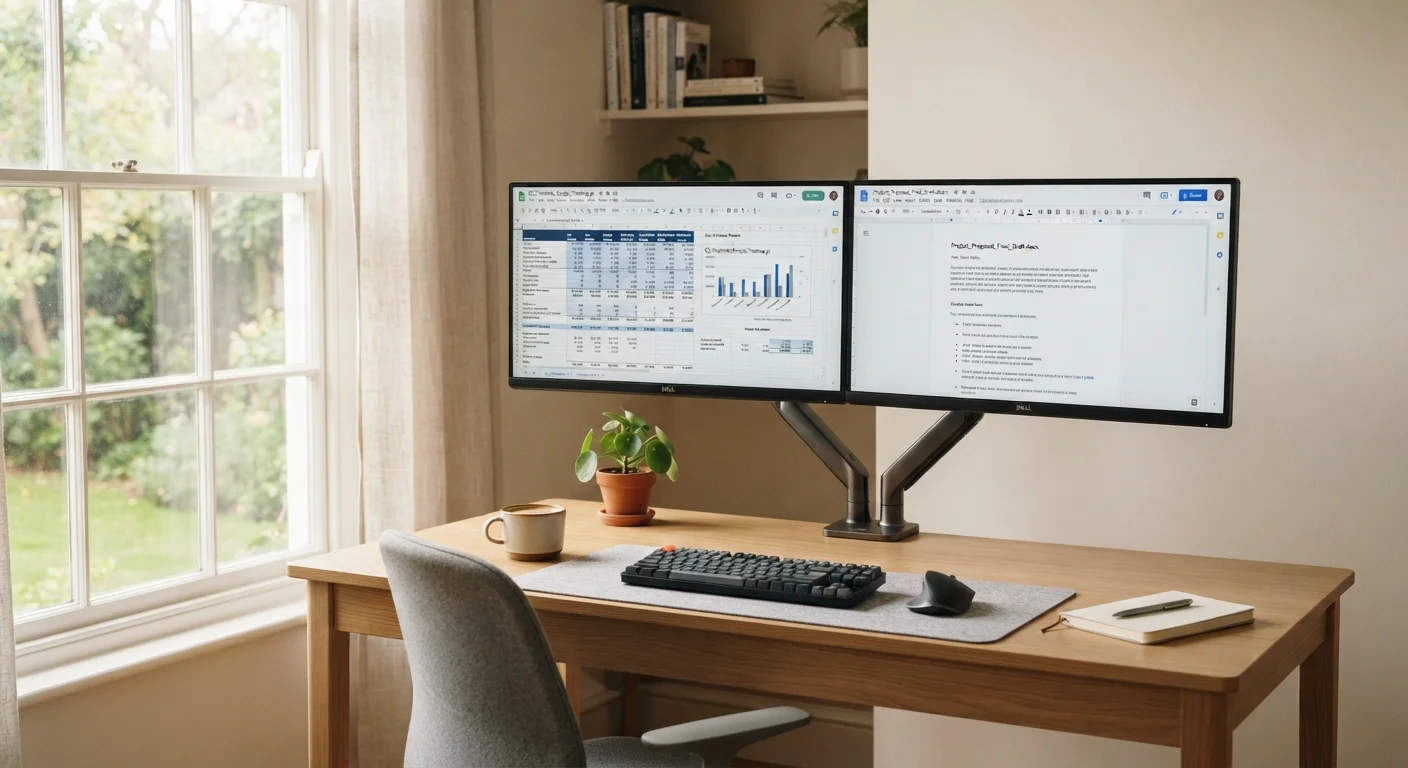
Our Verdict
Dual-monitor setups offer measurable workflow benefits for workers who genuinely multitask across windows — analysts, writers, developers, and coordinators who live in multiple apps simultaneously will likely find real value. But the gains aren't automatic, and for focused, single-task work the second screen can create more distraction than efficiency. Matching screen configuration to your actual work patterns — not assumptions — is the most useful framework for this decision.
Best suited to remote workers whose daily tasks consistently require simultaneous reference across two or more applications, and who have adequate desk space and budget to set up the arrangement ergonomically.
What a Second Monitor Actually Changes
Adding a second monitor doesn't simply give you more room to park windows — it changes how you move between tasks. With two screens, you can keep a reference document, spreadsheet, or video call visible while actively working in another application. That reduction in switching — toggling between windows via Alt+Tab or clicking a taskbar — is where most of the practical benefit comes from.
For workers who routinely cross-reference content (analysts comparing data sets, writers fact-checking while drafting, coordinators tracking a calendar while writing emails), keeping two contexts visible simultaneously reduces the cognitive cost of context-switching. You spend less time mentally reloading what you were just looking at.
That said, having two screens doesn't automatically make you more productive. If your work is primarily sequential — focused writing, video editing, reading — a second monitor may sit mostly idle or become a surface for distractions like social feeds and news. Understanding common home office productivity myths can help you assess whether a second screen would genuinely serve your workflow or simply feel like an upgrade.
Reduces costly context-switching between applications
Keeping two windows visible simultaneously cuts the mental effort of reloading context each time you switch tasks — a genuine efficiency gain for reference-heavy work.
Supports video calls alongside active work
Placing a video call on one screen while working on a document on the other eliminates the constant resizing and toggling that disrupts meeting participation.
Useful for roles with parallel data streams
Analysts, developers, and project managers who monitor dashboards, logs, or live data alongside their primary work environment see direct usability benefits.
Can improve accuracy in comparison tasks
Side-by-side document comparison — contracts, spreadsheets, design mockups — is faster and less error-prone when both files are simultaneously visible.
The Real Costs Beyond the Purchase Price
The upfront cost of a second monitor is only part of the picture. Here's what else enters the equation:
- Desk footprint: Two standard 24-inch monitors require roughly 40–50 inches of horizontal desk space — plus a few inches on each side for clearance. In a studio apartment or shared room, that footprint matters.
- Ergonomic complexity: Correct dual-monitor positioning — both screens at equal distance and height, centered on your natural sightline — is harder to achieve than it sounds. Poor placement leads to neck rotation or asymmetrical posture over hours. The ergonomics of monitor placement deserve serious attention before you commit.
- Cable and peripheral clutter: A second monitor typically means another power cable, another display cable, and potentially a more complex connection to your laptop. A USB-C dock or monitor arm can mitigate this, but both add cost.
- GPU load: Running two monitors draws more from your computer's graphics processing. For most office tasks this is negligible, but on underpowered laptops it can affect battery life.
Significant desk footprint in small workspaces
Two standard monitors can consume nearly four feet of desk width, leaving little room for peripherals, notebooks, or any non-screen workspace.
Ergonomic setup is harder to get right
Positioning two screens to avoid neck strain requires monitor arms or careful stand adjustment — an expense and effort many workers skip, leading to posture issues over time.
Second screen can become a distraction surface
Without intentional use, the second monitor often fills with non-work content — social media, news feeds — that fragments attention during focused work periods.
Additional cost beyond just the monitor
A second display typically requires a dock, extra cables, and sometimes a monitor arm for proper ergonomics — pushing the real total cost meaningfully higher.
Productivity gains depend heavily on task type
Workers doing primarily sequential, focused tasks — writing, reading, editing — may see little benefit and could find two screens add visual noise rather than clarity.
What the Evidence Suggests — and Where It's Incomplete
Several studies — including research published by organizations like the University of Utah and ergonomics consultancies — have found productivity improvements for specific task types when workers used larger or dual displays. Tasks involving document comparison, data entry with reference material, and code review tend to show measurable time savings.
However, these findings come with important caveats. Studies often measure narrow task performance rather than overall daily output. They rarely account for individual working styles, the quality of ergonomic setup, or how distraction-prone a worker is. A second monitor positioned poorly, or filled with non-work content, can negate any efficiency benefit.
~9–50%
Productivity improvement range cited in dual-monitor studies
Research findings vary widely depending on task type and study design; gains are most consistent for document-comparison and data-entry tasks, not general office work.
40–50 in.
Typical horizontal desk space required for two 24-inch monitors
This estimate assumes standard monitor stands with minimal side clearance; a monitor arm arrangement may compress total spread slightly.
For workers in small spaces, the constraints may be decisive regardless of productivity potential. Small-space home office solutions that prioritize vertical storage and compact peripherals may be more practical than adding screen real estate horizontally.
Alternatives Worth Considering First
Before defaulting to two monitors, consider whether the underlying problem has a simpler solution:
- Ultrawide monitors: A single 34-inch ultrawide display provides the equivalent of roughly 1.5 standard monitors in one panel, with no center bezel, consistent color, and one cable to manage.
- Virtual desktops: Windows and macOS both support multiple virtual desktops — separate screen states you switch between with a keyboard shortcut. For workers who separate tasks by time (morning email, afternoon deep work), this can replicate some dual-screen organization without hardware.
- Laptop + one external monitor: Using your laptop screen as a secondary display and one external monitor as the primary is often the most cost-efficient entry point, requiring minimal extra hardware.
Your peripheral choices interact with this decision too — see wired vs. wireless peripherals for remote work for how keyboard and mouse setup fits into a multi-monitor desk configuration. And if you're building a workspace from scratch, the anatomy of a productive home office offers a broader framework for prioritizing what matters most.
Monitor Specs Still Matter on a Second Screen
A second monitor is only as useful as its display quality allows. Resolution, refresh rate, and color accuracy affect readability and eye strain during long work sessions. Before purchasing, it's worth understanding which monitor specs actually affect daily use — not every spec on the box translates to a noticeable difference for office work.
The content on this site is for informational purposes only and is not a substitute for professional advice. Always consult a qualified professional for guidance specific to your situation.